
1. Signing in with a one-time link
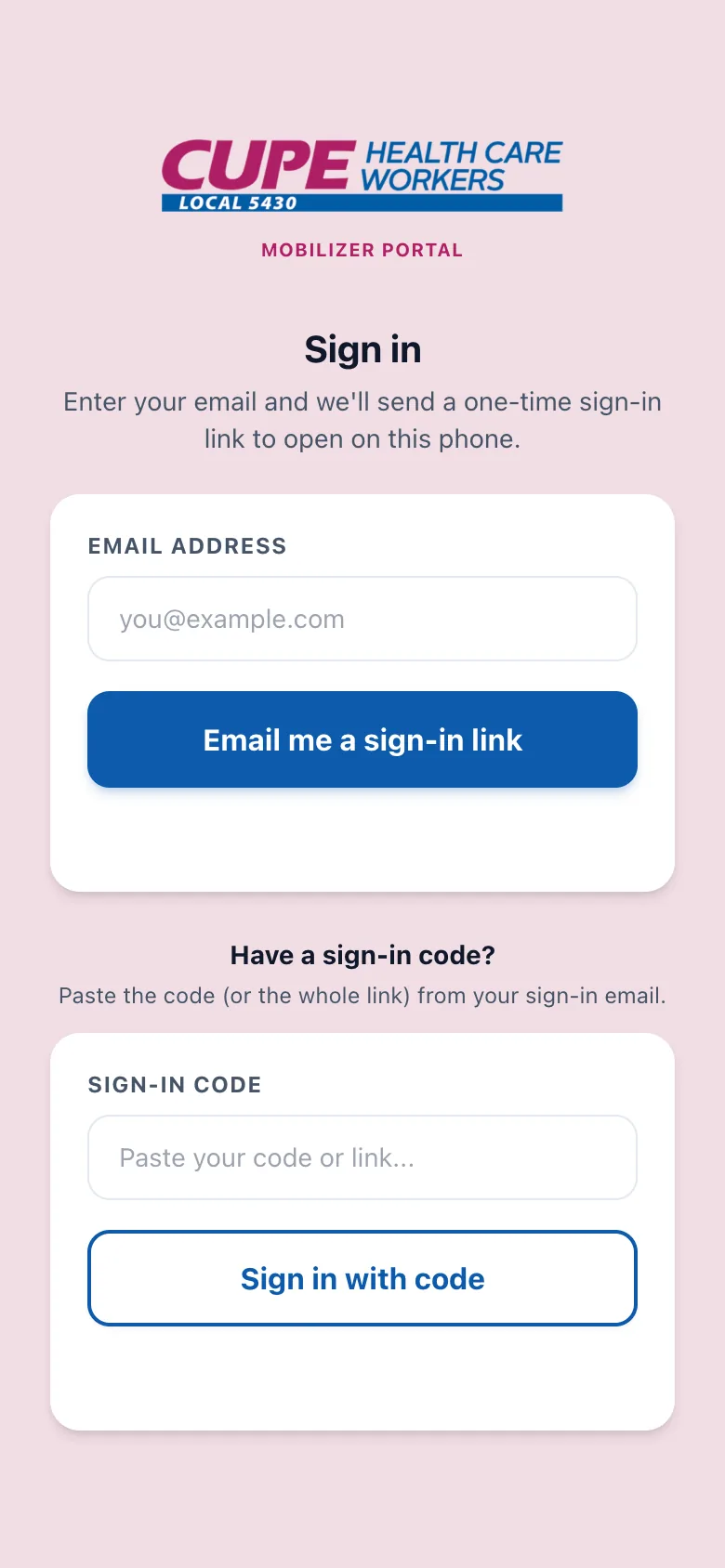
There is no password. You sign in with a one-time link that CUPE emails you: open the app, type the email address the union has on file for you, and tap Email me a sign-in link. If your address is registered, a sign-in email arrives within a minute or two (check spam the first time).
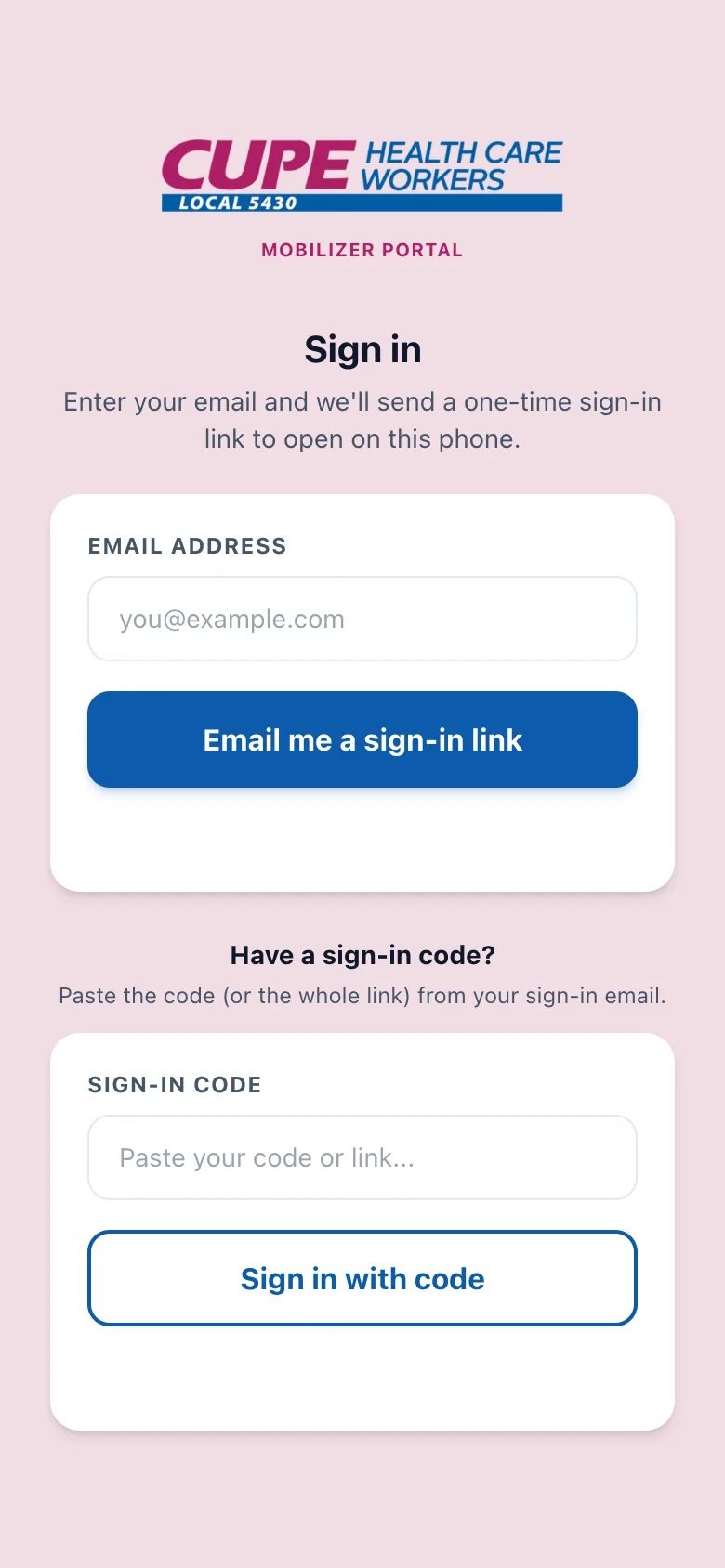
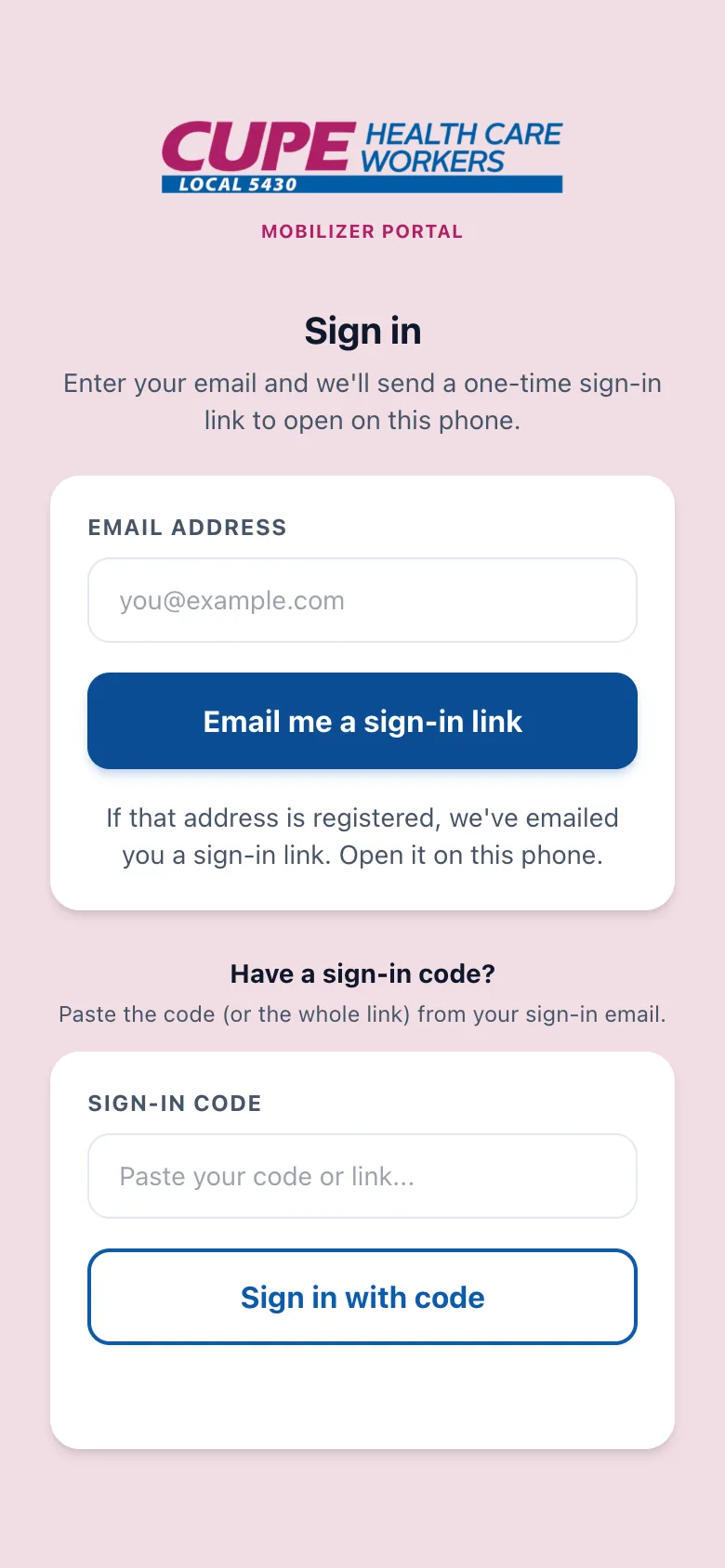
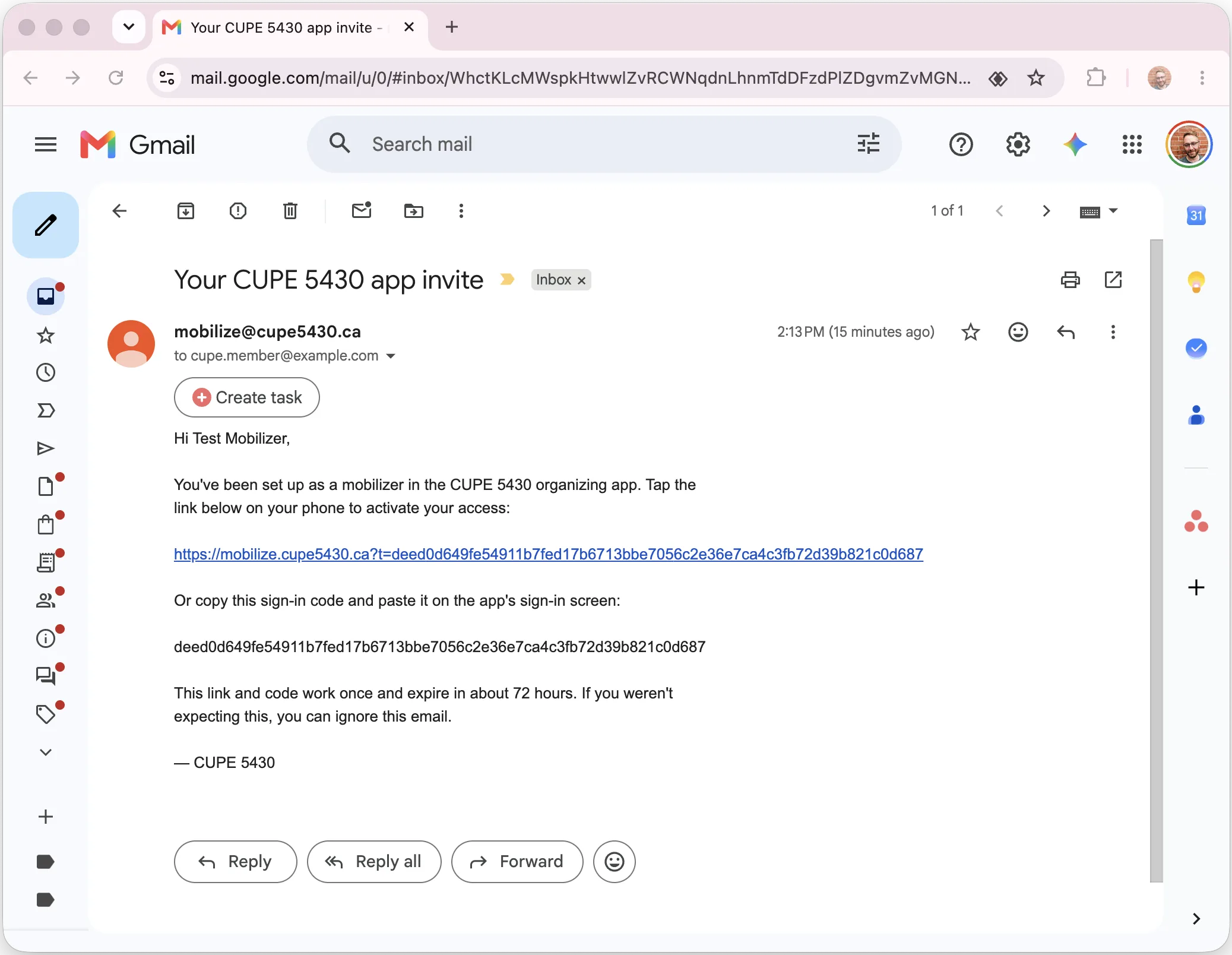
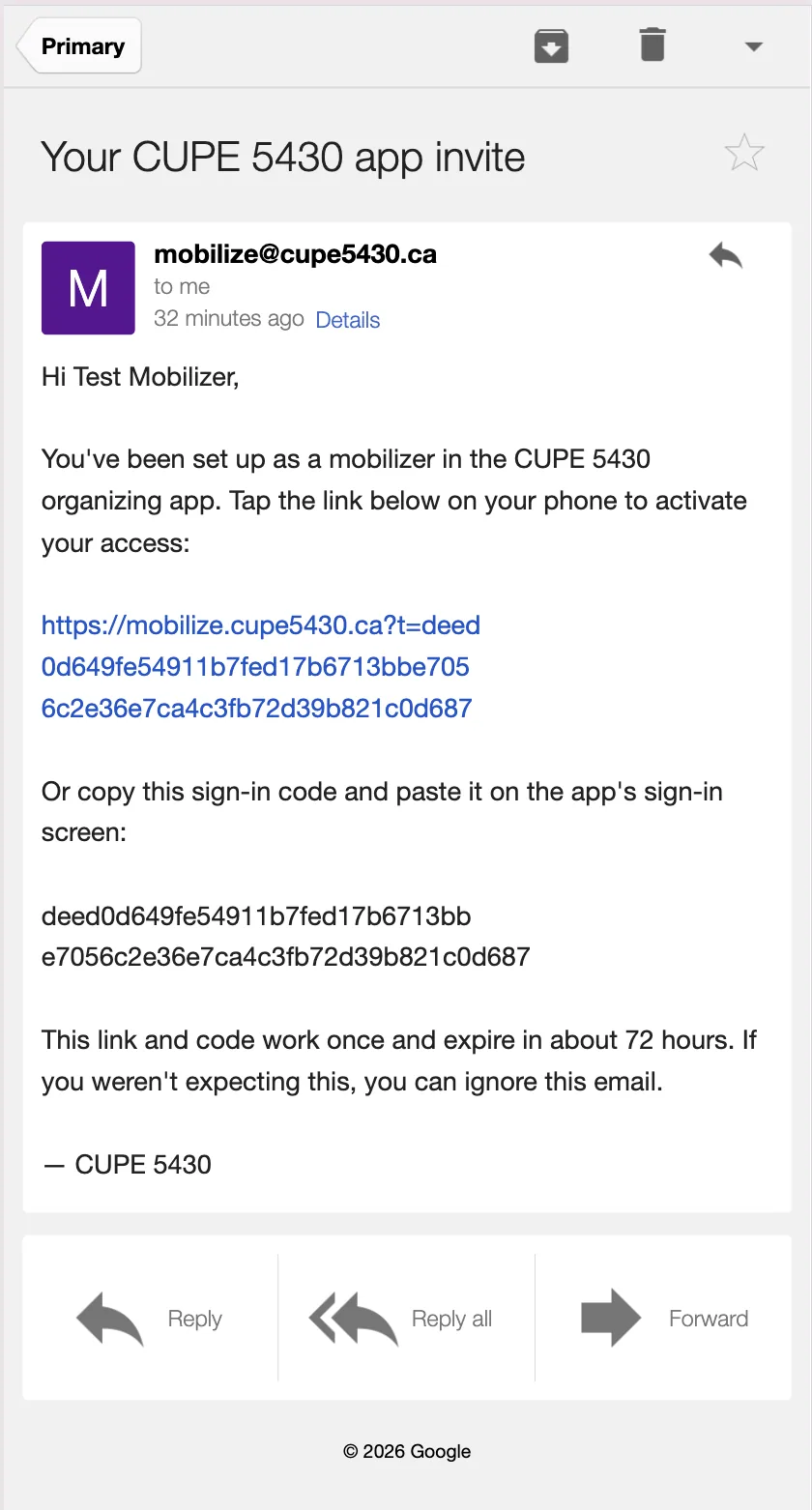
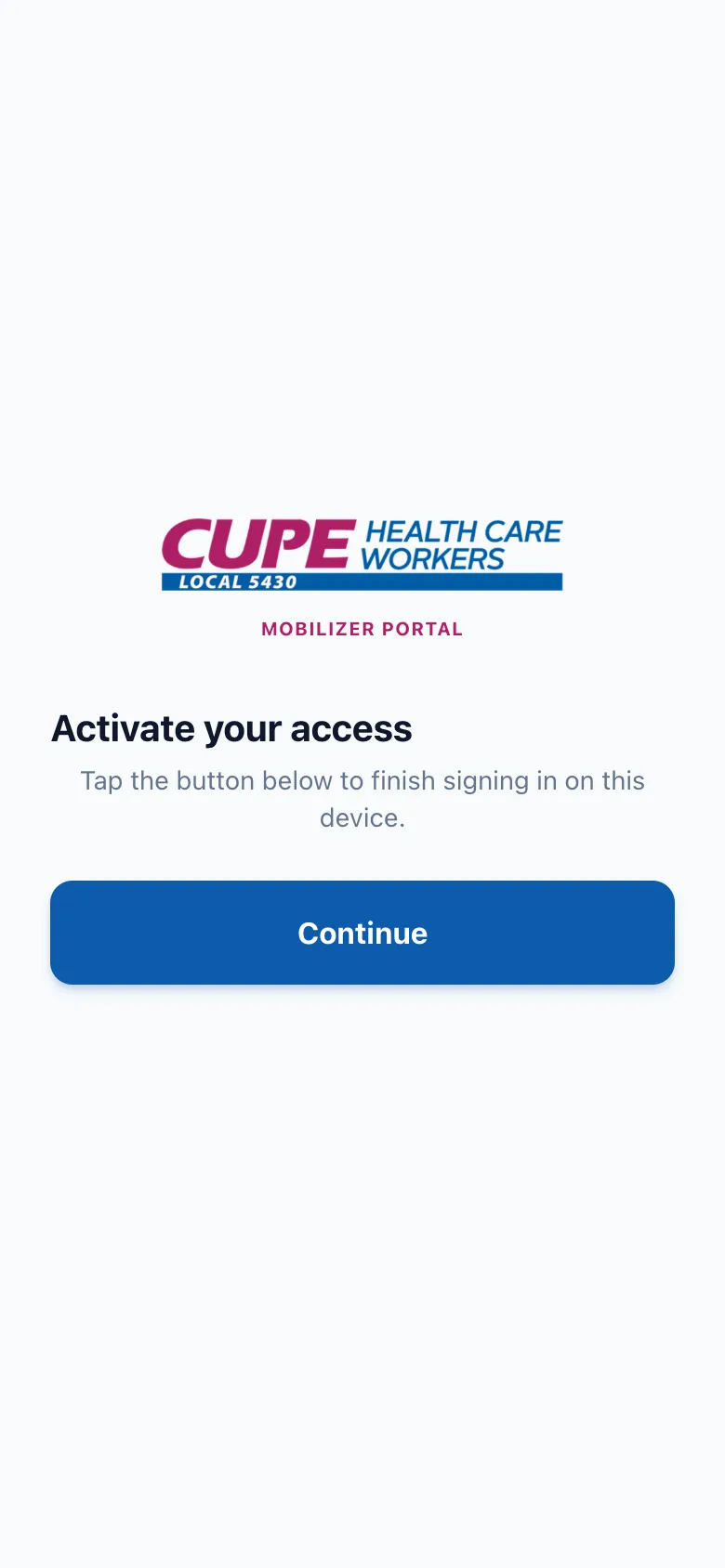
The email contains a sign-in link plus a sign-in code (you'll only need the code when using an installed home-screen app — see section 9). Open the link on the phone you'll be mobilizing with, then tap Continue. That's it — you're in.
2. Finding your way around
After signing in you land on your member list — the people at the site you're covering. The header shows which facility you're looking at, your name, and three round buttons: refresh (circular arrows), help (?) — this guide — and settings (gear).
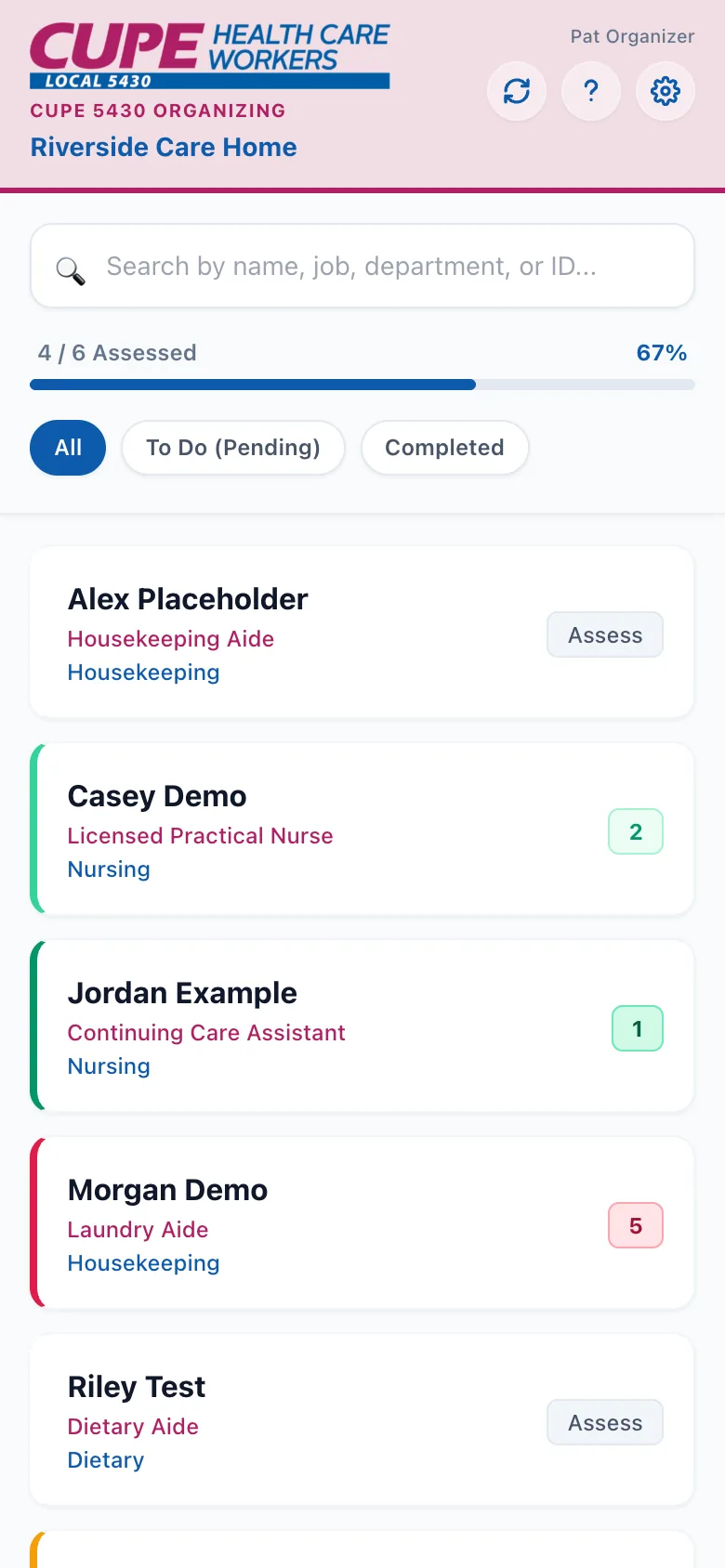
Each member card shows:
- their name (tap anywhere on the card to open them);
- their job title (pink) and department (blue);
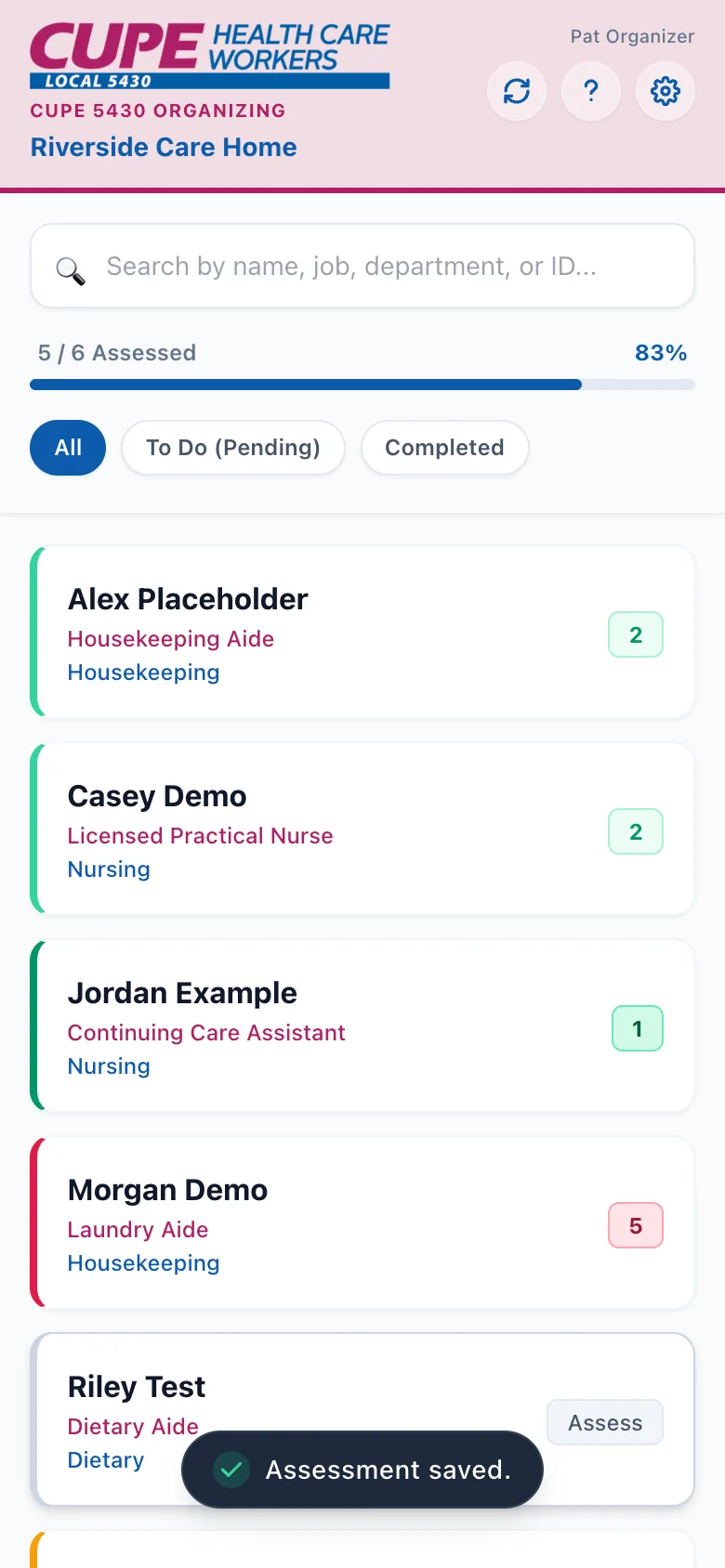
- a status pill on the right: — Assess means you haven't recorded anything yet; a coloured pill with a number (or a word — see section 3) is the answer you recorded; Voted appears during vote campaigns for members who have already voted.
The progress bar above the list counts how many of your members have an answer recorded — it ignores searching and filtering, so it always reflects your whole current list.
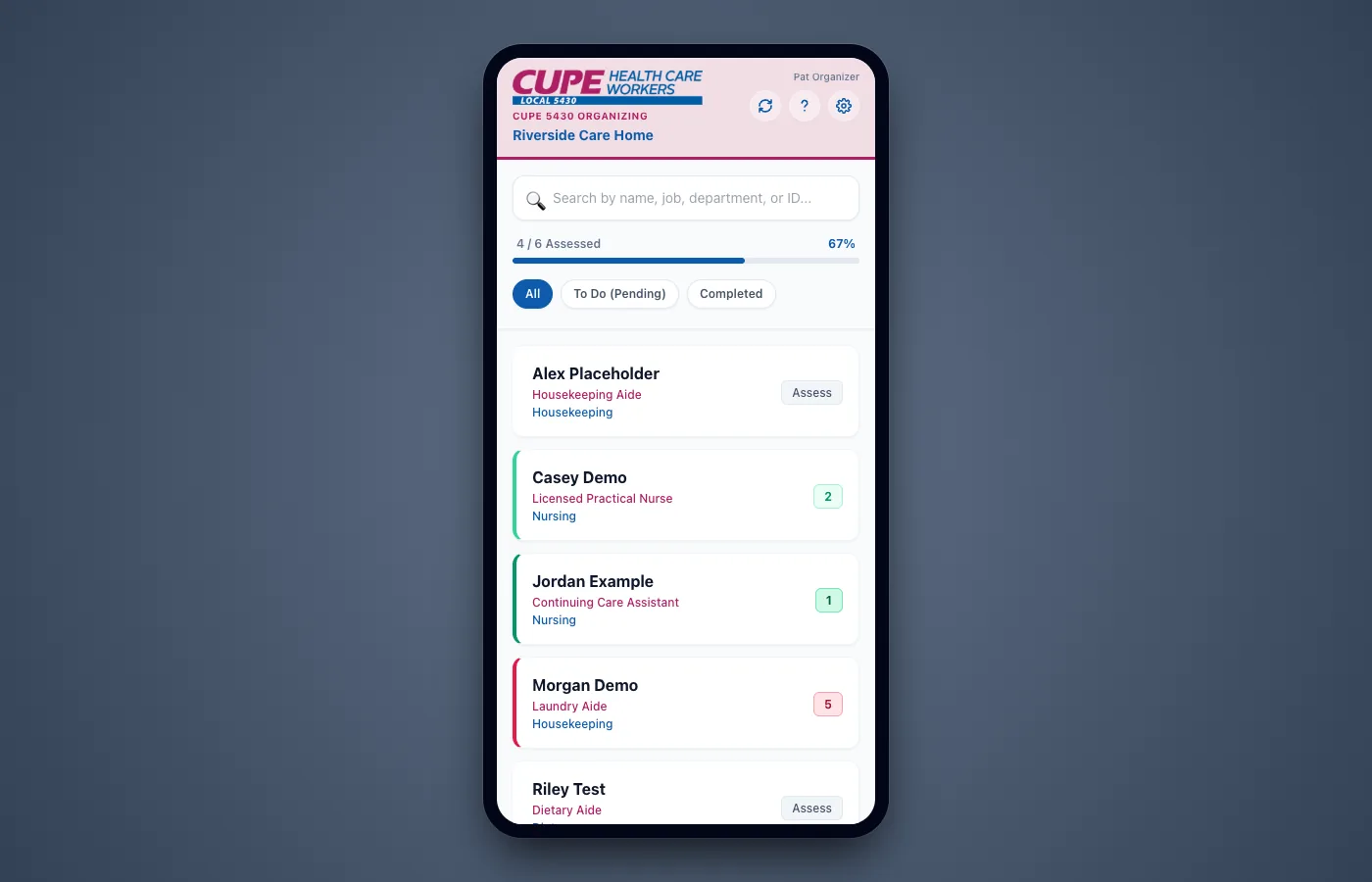
On a computer, the app shows the same phone-shaped screen centred on the page — everything works the same way with a mouse.
3. Recording an assessment
Tap a member's card and a panel slides up with the campaign question and the answer buttons. Their phone number and email are shown there too (read-only), so you can check you're talking to the right person.
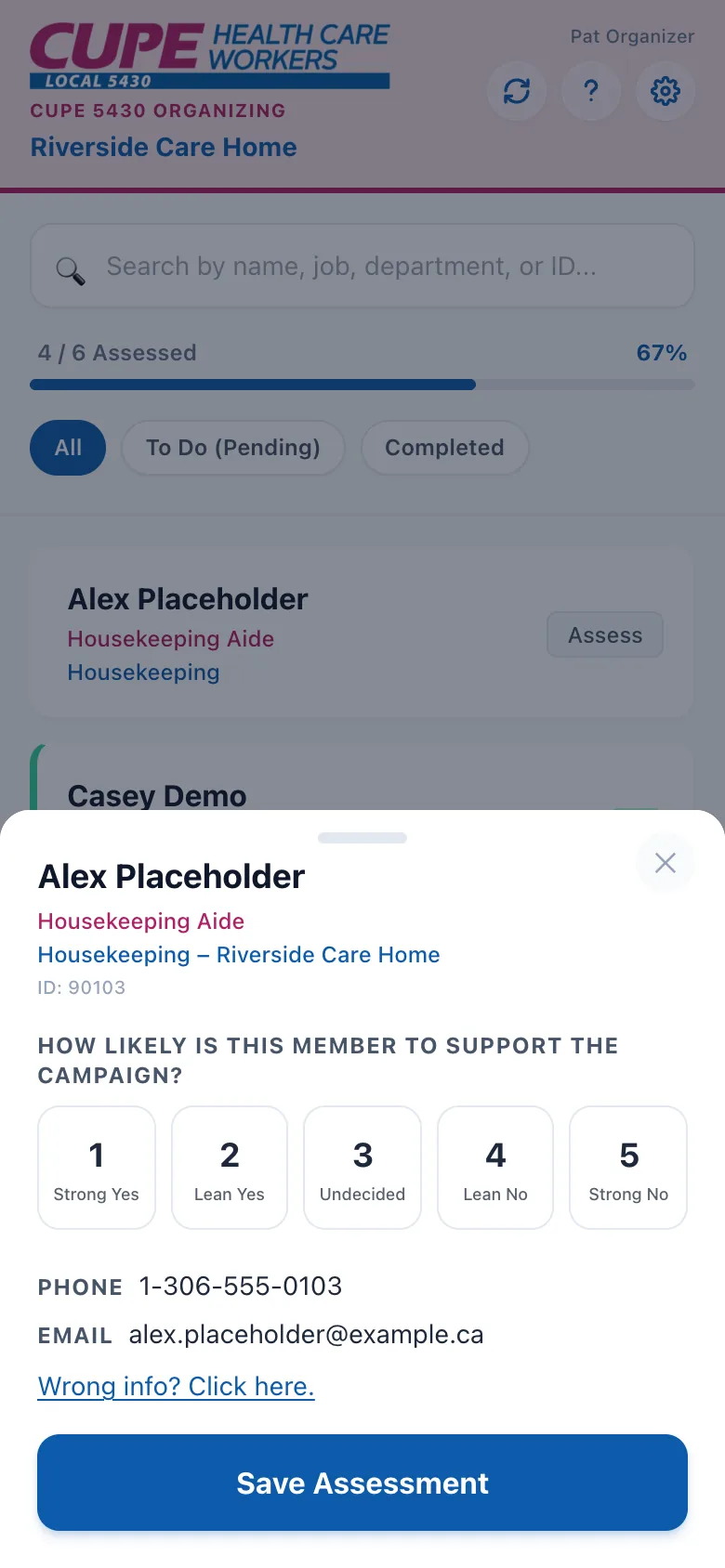
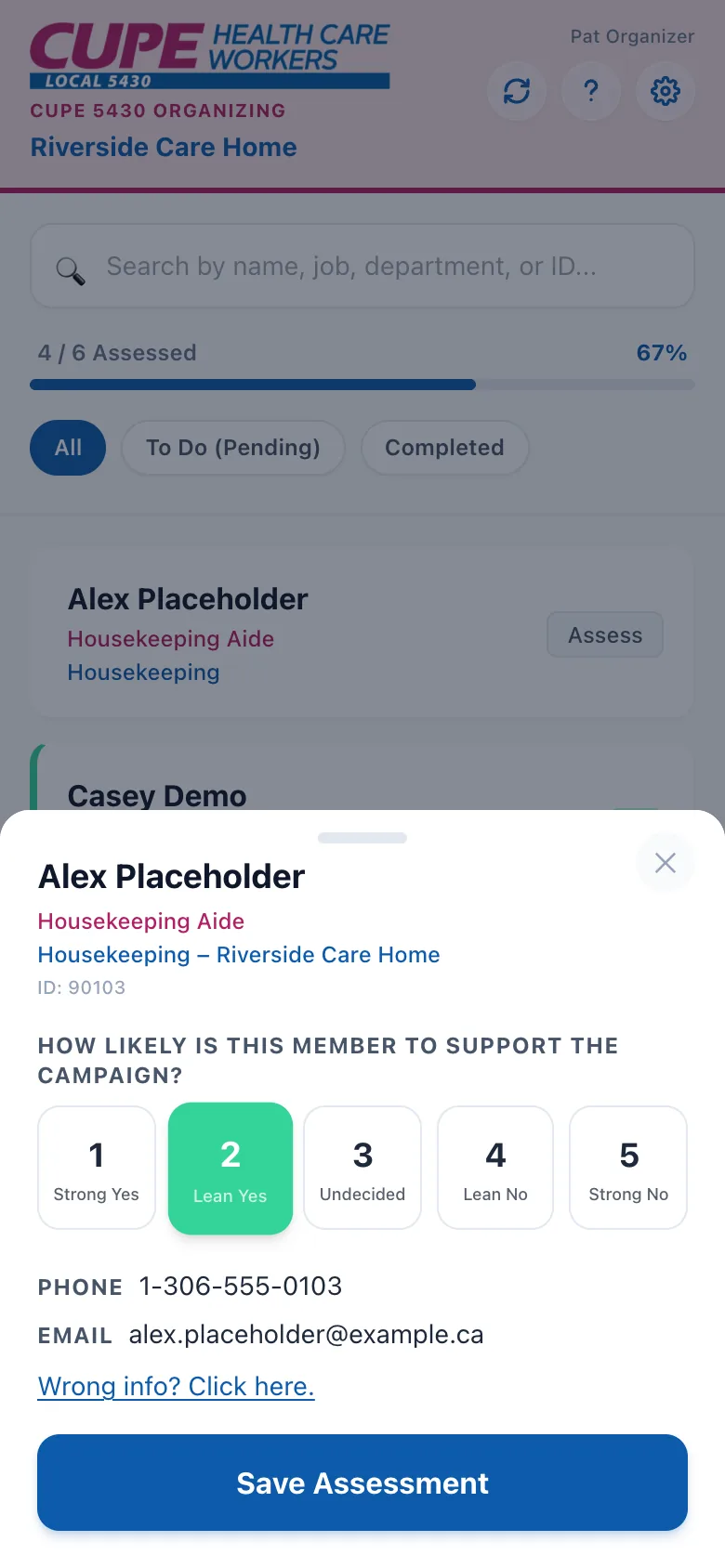
Tap the answer that fits, then Save. A little "Assessment saved." confirmation pops up and the member's card gets its coloured pill. Some campaigns use numbered answers with a label (1 "Strong Yes" through 5 "Strong No"); others show a word on the button instead — for example a vote-reminder campaign with a single Reminded button. They work exactly the same way.
- Changing an answer: open the member again, tap a different answer, and save. The newest answer always wins.
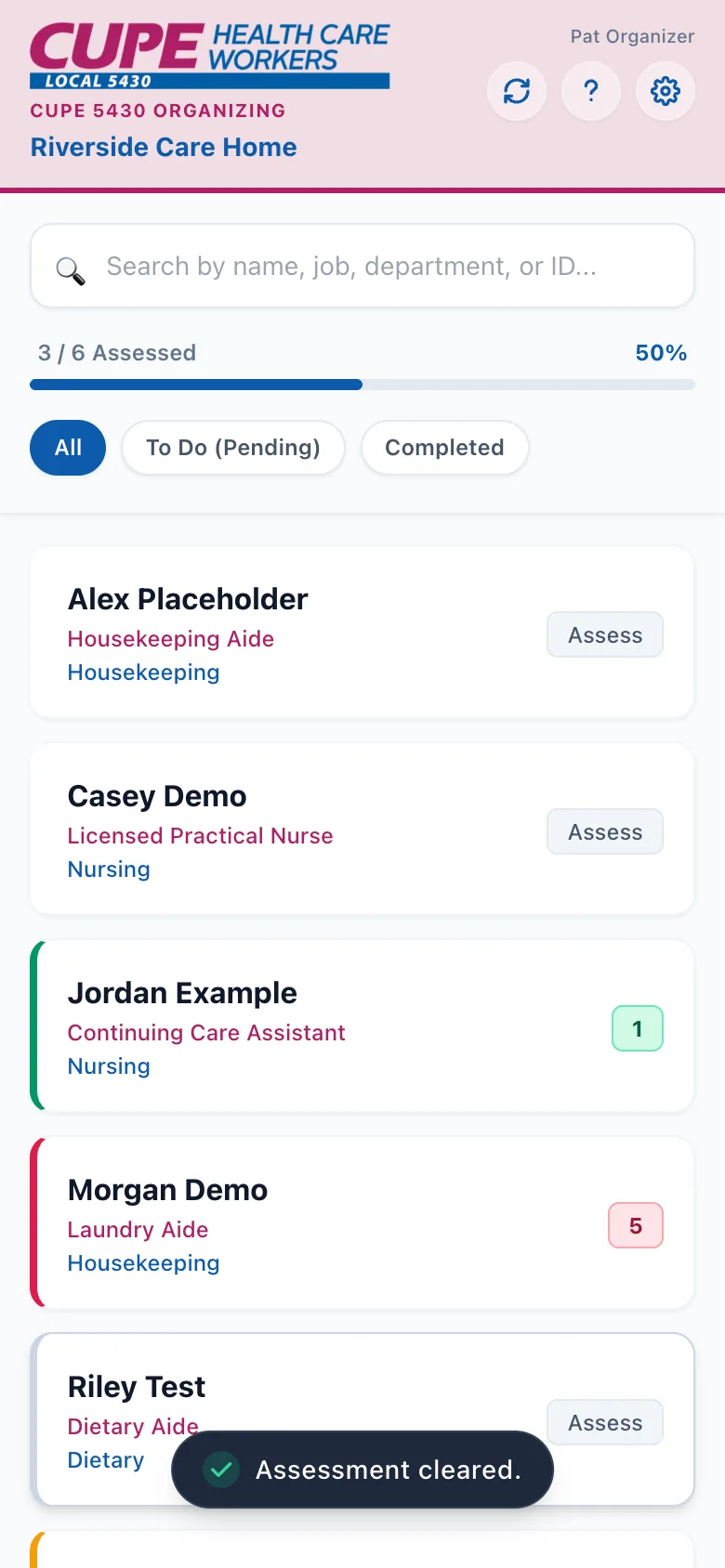
- Removing an answer: open the member, tap their currently-highlighted answer once to de-select it (no button highlighted), then save. The app confirms with "Assessment cleared." and the card goes back to Assess.
If saving fails (bad reception, for instance) the panel stays open with everything you entered still there — fix your connection and tap save again. Nothing is lost.
4. Search, filters & the voted banner
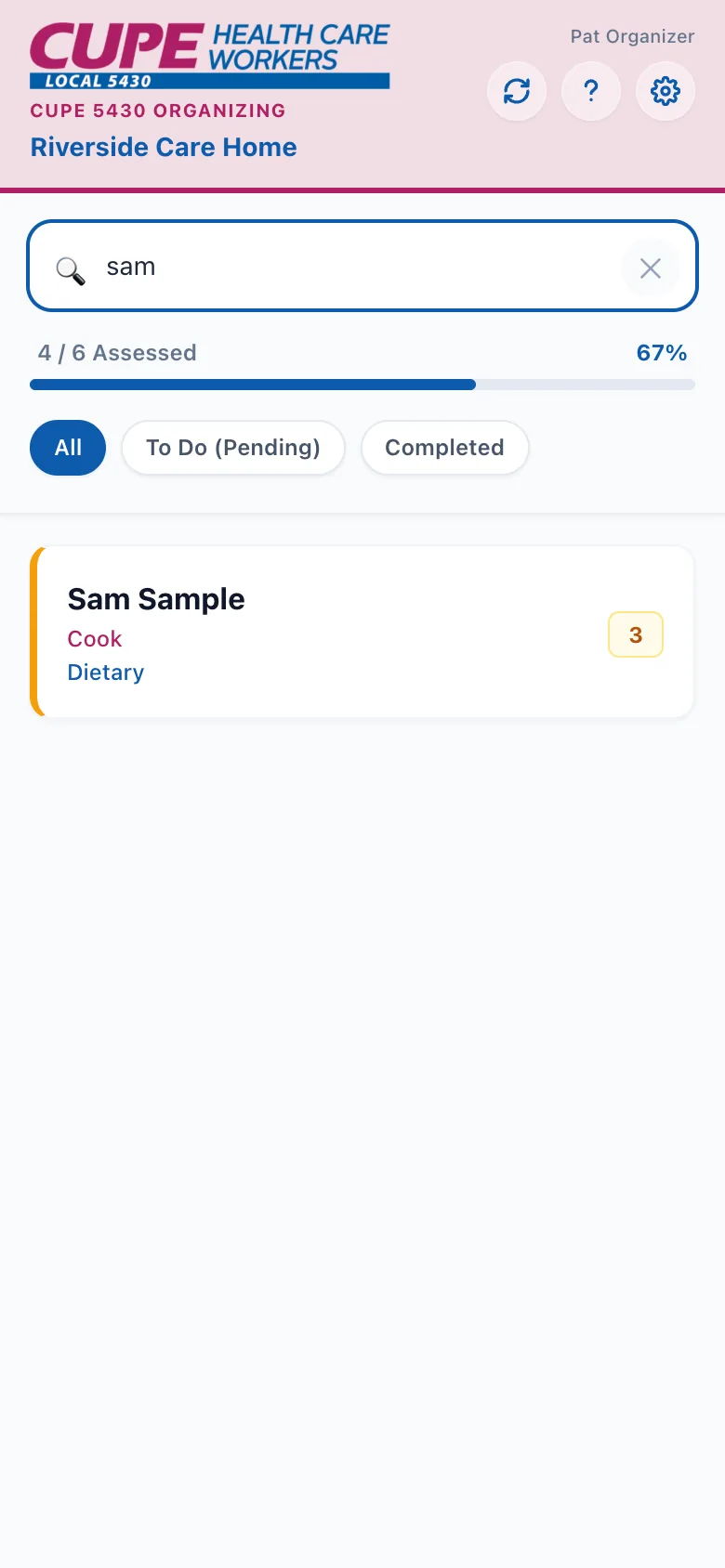
The search box matches names, job titles, departments, and member IDs as you type. The filter chips under the progress bar narrow the list to To Do (Pending) or Completed; All brings everyone back.
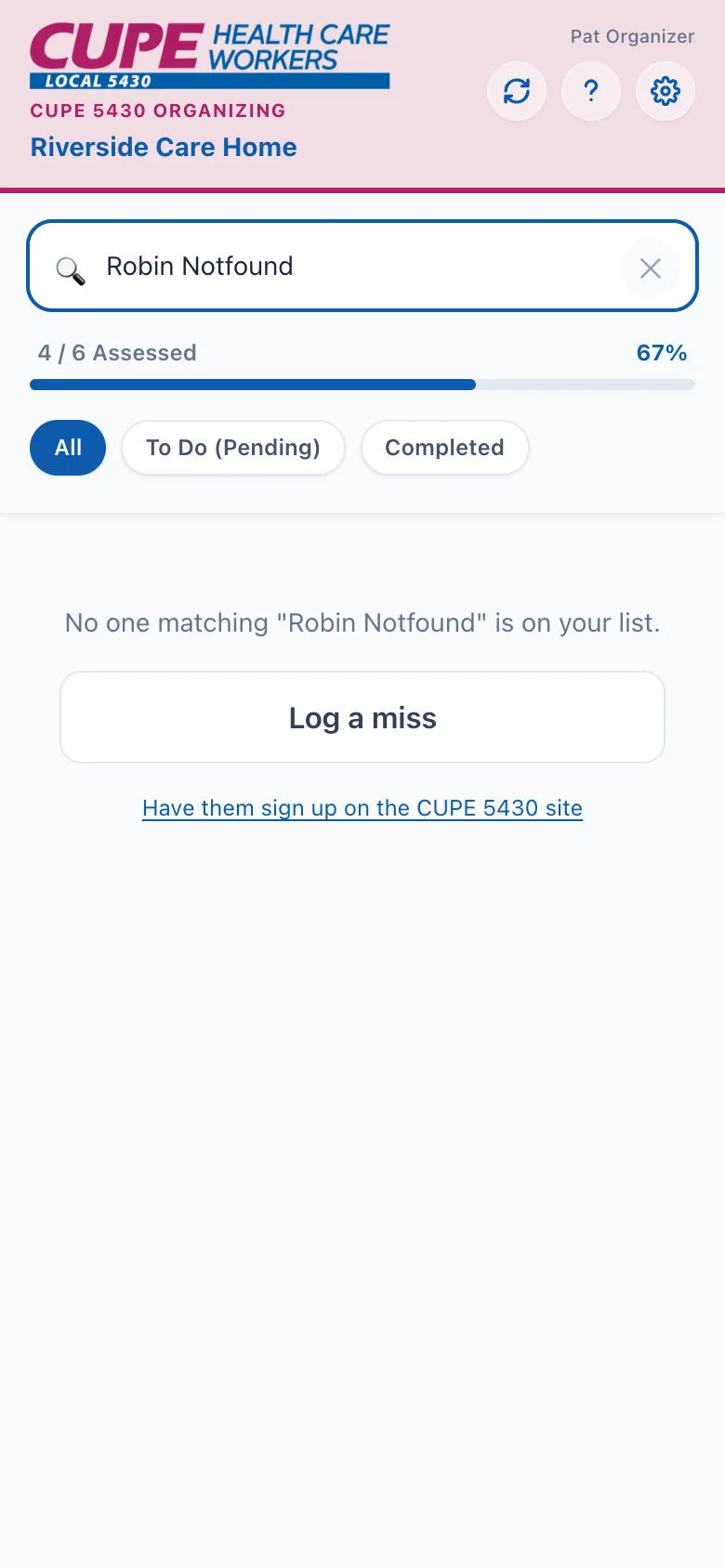
If someone you spoke to isn't on your list, tap Log a miss — staff follow up on those. There's also a link to the CUPE 5430 sign-up page if the member wants to get registered themselves.
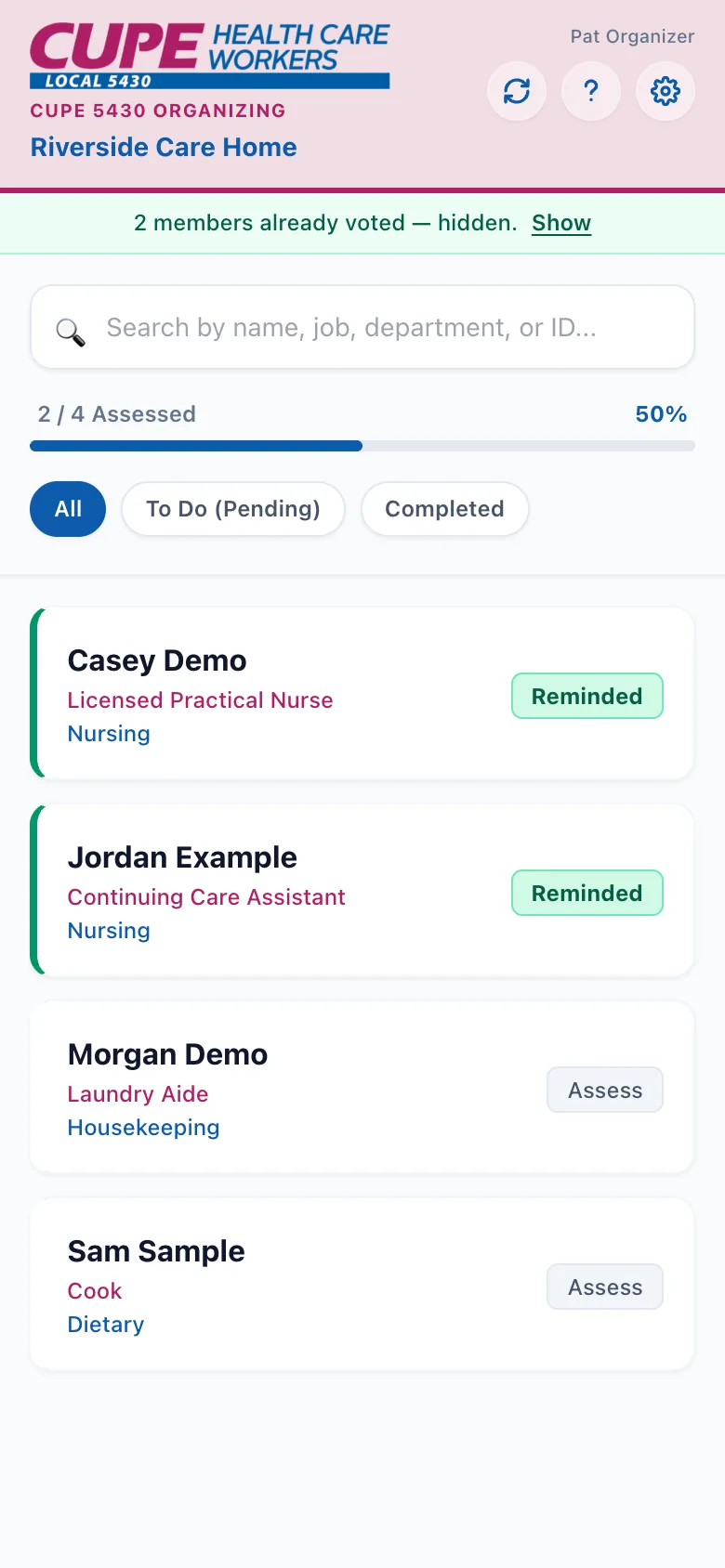
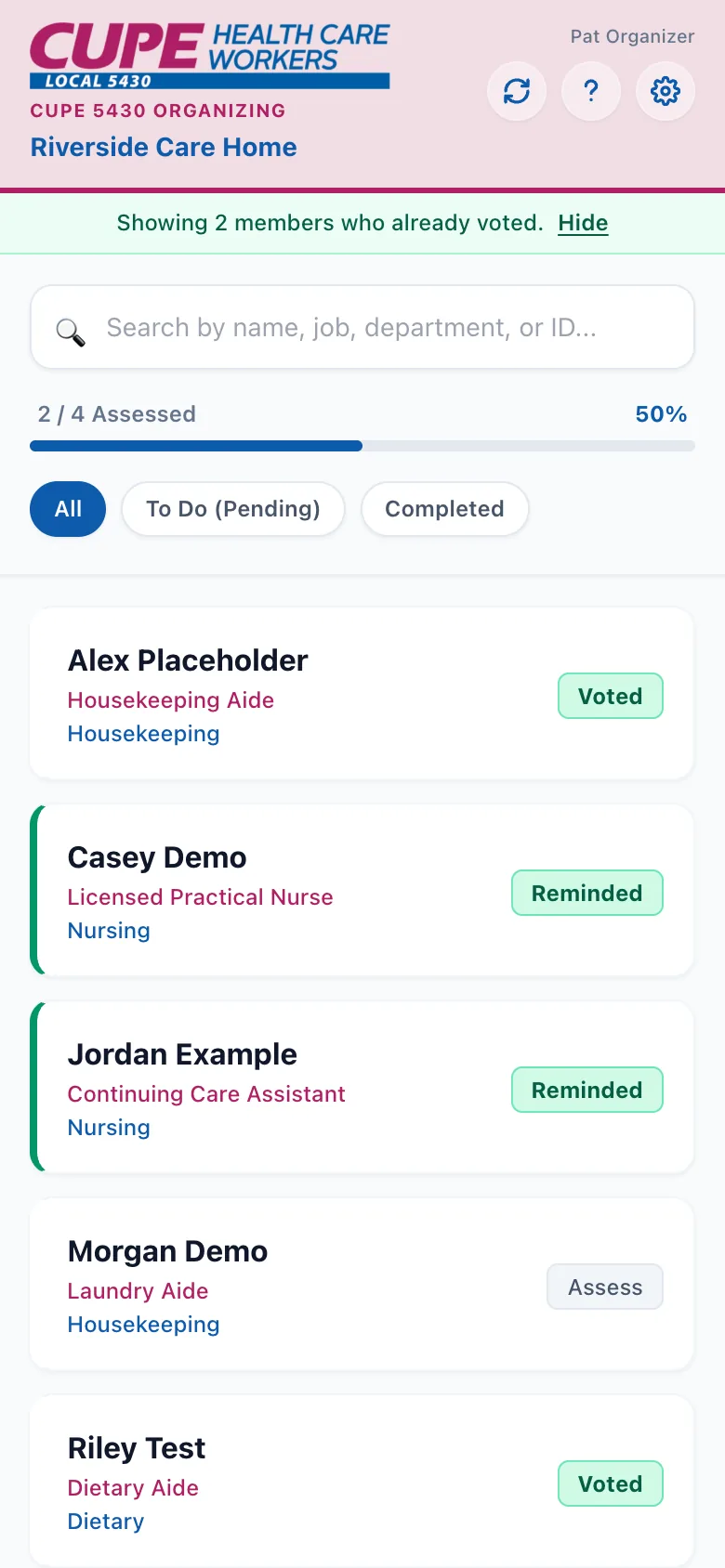
During a vote campaign, members who have already voted are taken off your to-do list automatically and a green banner counts them: tap Show/Hide on the banner to peek at them or tuck them away again. They're excluded from your progress count — the list is "who still needs a reminder".
5. Fixing wrong contact info
A member's phone and email appear in their panel, under the answer buttons. If something is out of date, tap "Wrong info? Click here." right below them — it opens the union's update form. Fill it in and the union office processes the correction; the app itself keeps showing the old value until that happens, which is normal.
6. Settings: sort order & switching turf
The gear button opens Settings. At the top you can sort your list by first name (the default) or last name.
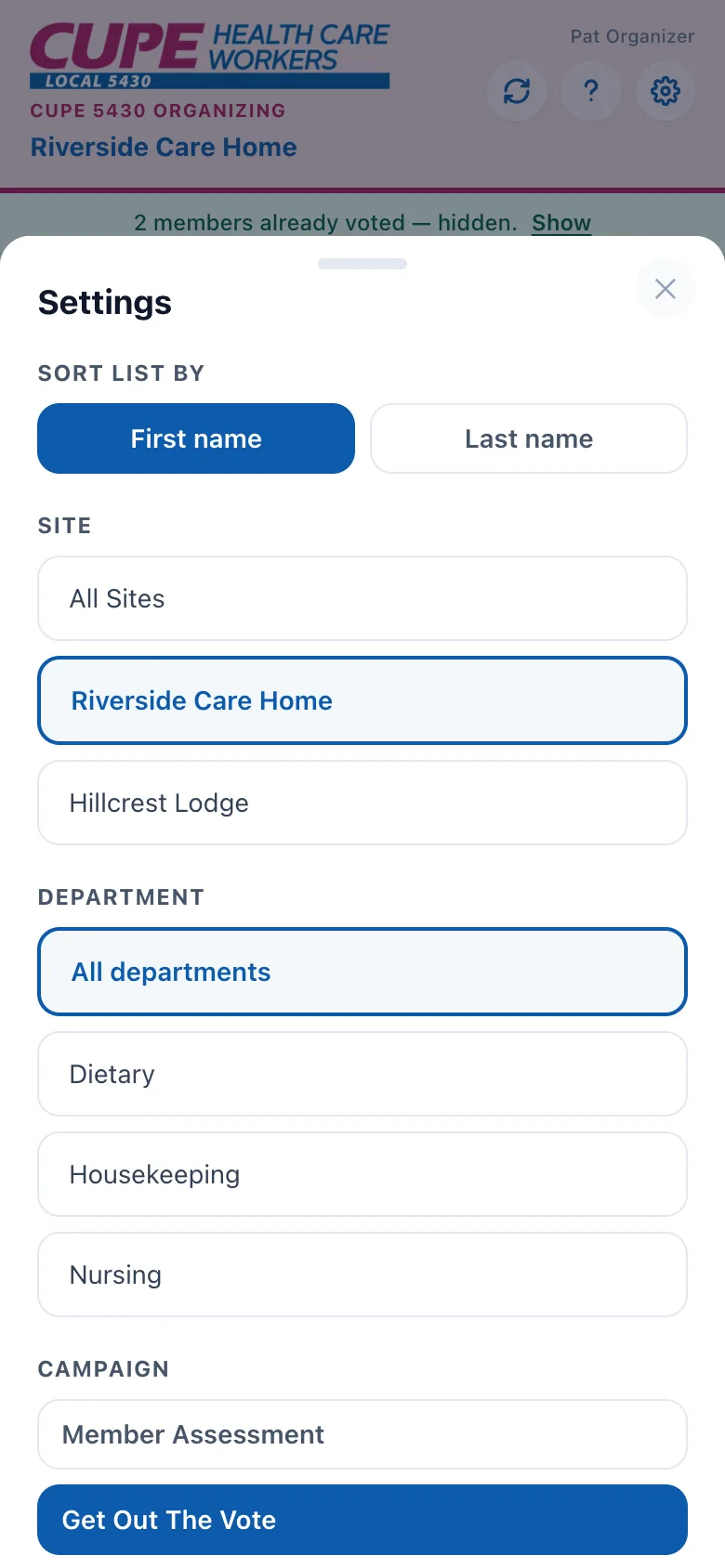
Below that live the turf pickers — which region, site, and department your list shows. The app only offers the levels your access includes, so your Settings may show fewer pickers than a teammate's:
- Region — only appears if you cover more than one region.
- Site — appears when there's a choice to make (several facilities, or you also cover other regions). All Sites is offered only to mobilizers with region-wide access.
- Department — appears for facilities that have departments, when your access is department-level or better.
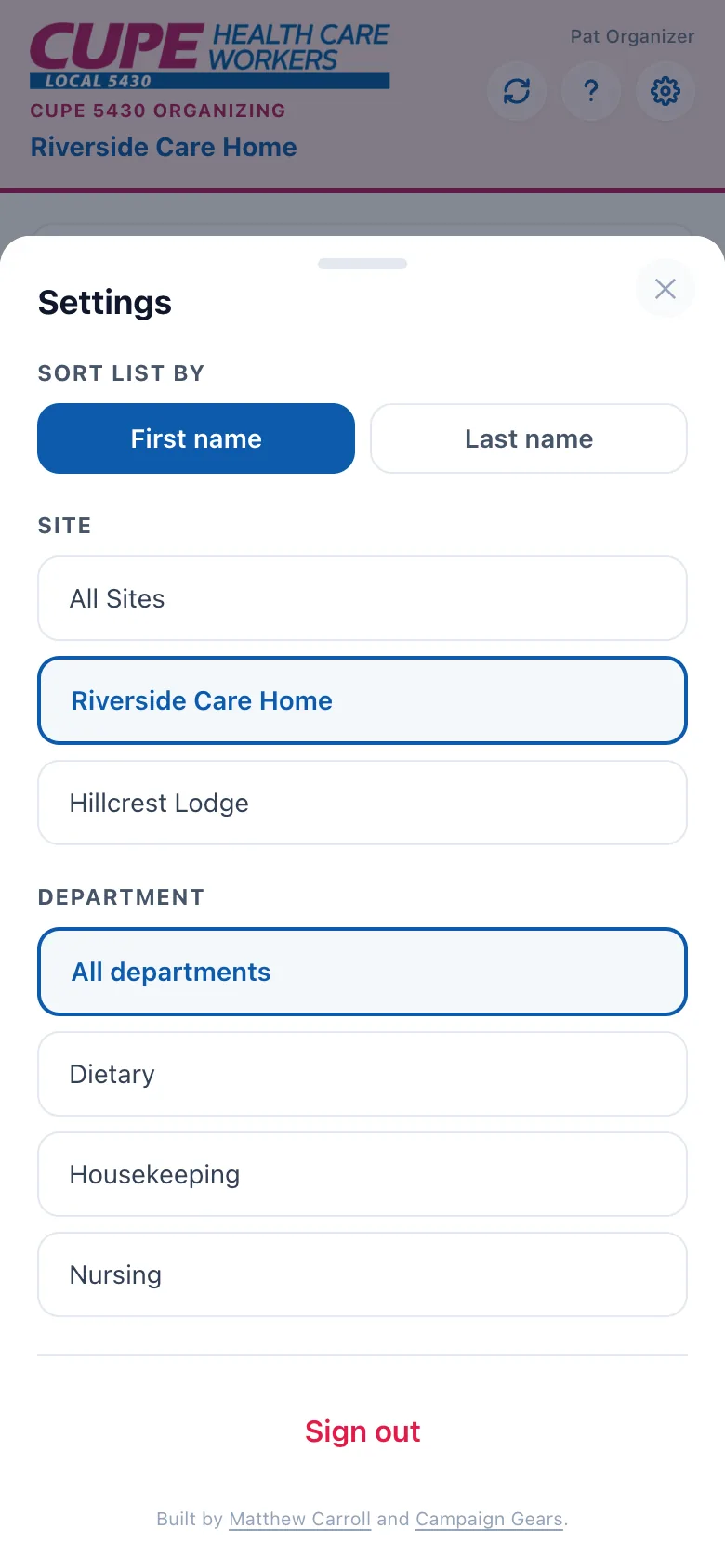
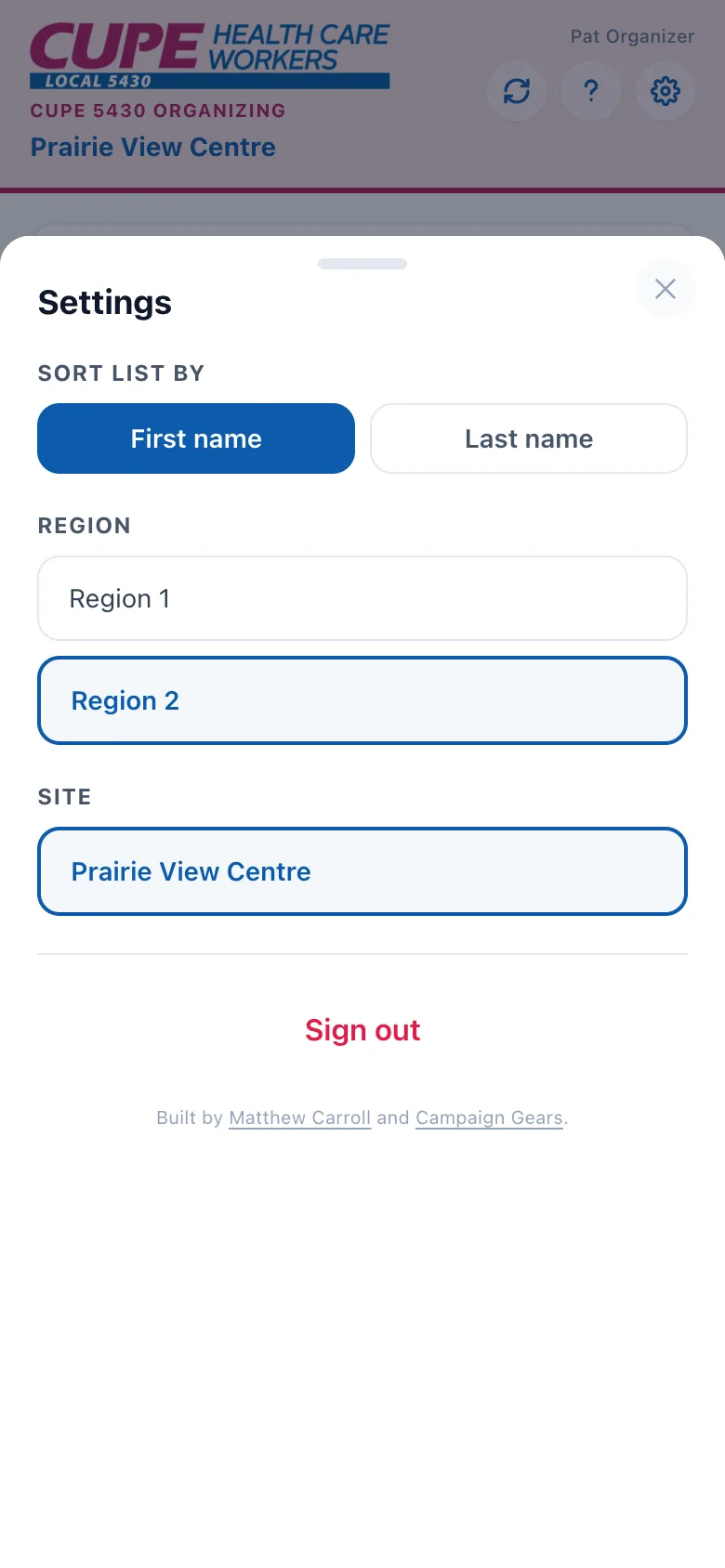
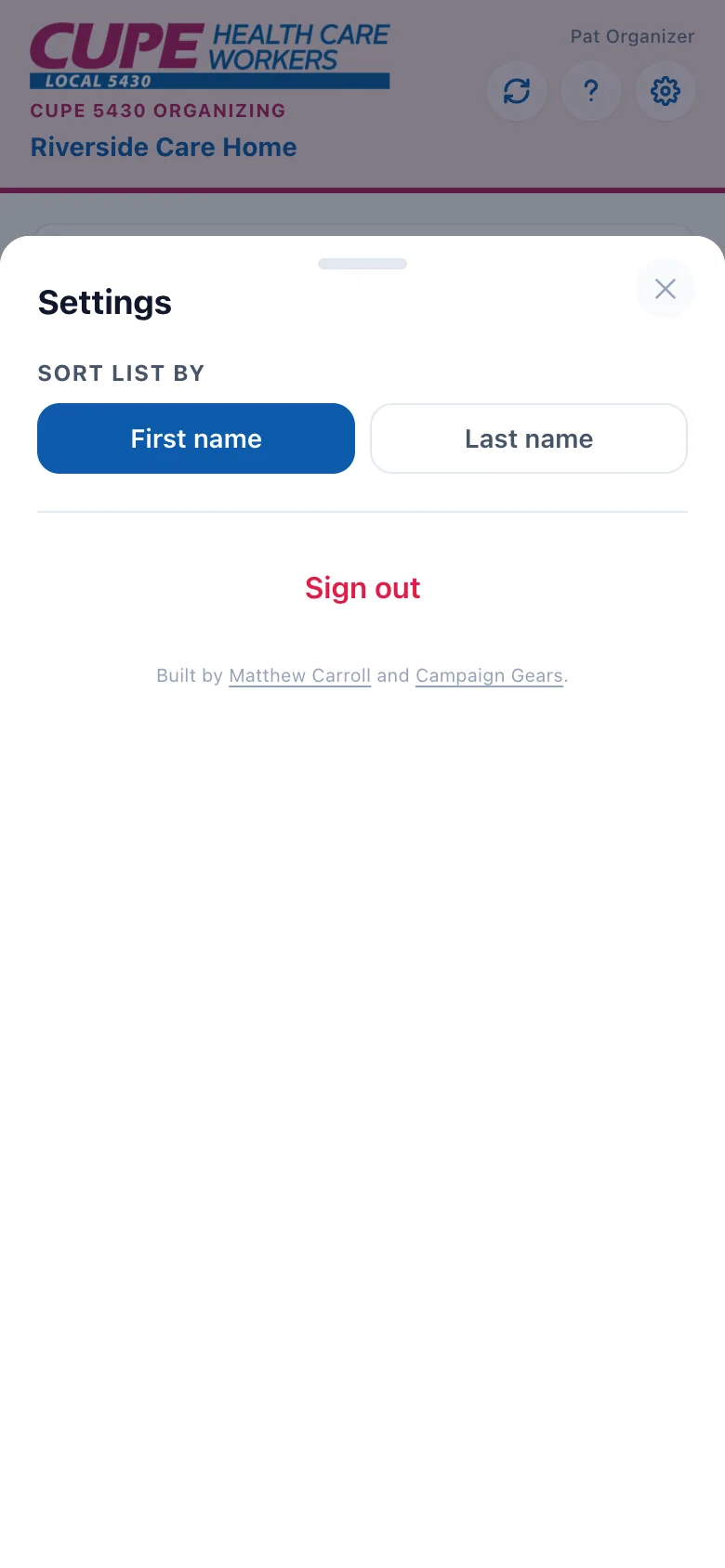
Every pick reloads your list for that selection — the header always names the site (or region) you're currently working.
7. Switching campaigns
When more than one campaign is running at once (say, an assessment drive and a vote-reminder push), a Campaign picker appears near the bottom of Settings. Tap the campaign you want to work on — the list reloads with that campaign's question, answers, and progress. If only one campaign is running, there's no picker to worry about.
8. Refreshing & app updates
You rarely need to refresh anything: the app quietly checks for updates about once a minute while open, and again whenever you come back to it. Teammates' assessments flow into your list on their own.
The refresh button (circular arrows, top right) forces a full reload right now. It's also how new versions of the app itself reach your phone — if staff say "refresh the app", this is the button they mean. After staff-side changes, allow up to ten minutes or so for everything to reach every device.
9. Installing the app on your phone
The portal is a web app — you can keep it on your home screen like a regular app:
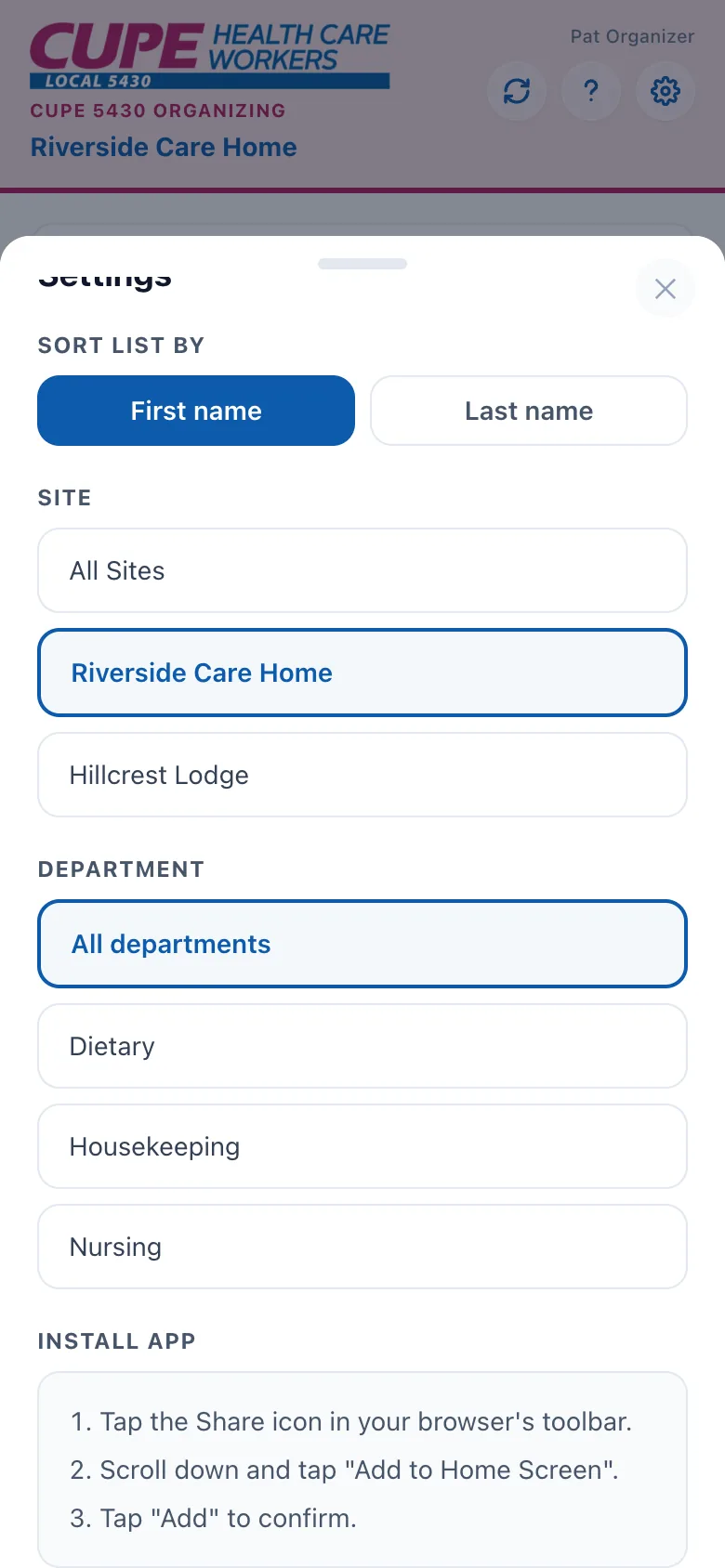
- Android (Chrome): open Settings in the app — an Install app button appears when your browser offers installation. Tap it and confirm.
- iPhone / iPad (Safari): tap the Share icon, scroll down, tap Add to Home Screen, then Add. (The app's Settings show these same steps on an iPhone.)
10. Signing out
Open Settings and tap Sign out (bottom of the sheet). Signing back in later needs a fresh emailed link or code — the old one won't work again. You normally don't need to sign out at all on your own phone; do it when handing a shared device to someone else.
Stuck on something this page doesn't cover? Talk to your CUPE staff organizer.
All names, facilities, and contact details in these screenshots are fictional practice data. Back to the app.
Built by Matthew Carroll and Campaign Gears.